
How do I disable brute force authentication security checks for specific IP addresses?
If you are getting the following message when trying to log in to Matomo, You are currently not allowed to log in because you had too many failed logins, try again later. it is because the Matomo brute force detection was triggered.
You can workaround this issue by whitelisting your IP address:
1. Go to Administration  > System > General Settings > Login.
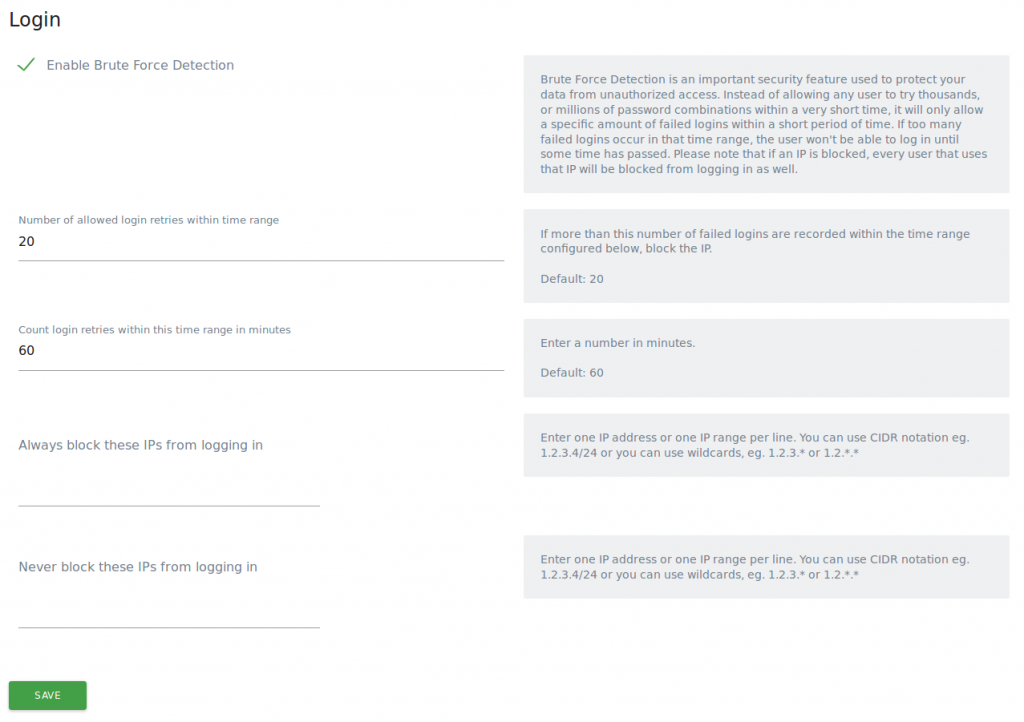
2. In the field, Never block these IPs from logging in, enter your IP address in this field.
3. Click Save. This will disable the brute force detector feature, and the error message should be cleared.
For reference, here are the available Login settings:
Other options
If you cannot log in to make this change, try these options:
- connect to your Matomo using a different network (for example using your phone’s data)
- wait for an hour to be able to log in again
- (On-Premise) or temporarily allow your own IP through the config file by adding below config to your
config/config.ini.php. Please note this will overwrite any previously configured IP in the UI:
[Login]

whitelisteBruteForceIps[] = "EnterYourIpAddress"
To find the cause of the Brute Force detection blocking an IP, please see our FAQ: How do I find the cause of the Brute Force detection blocking access from a specific IP?